How to View AI Agent Output on Mac Using superviewer
Your Claude Code agent just built something. Here's the two-minute MCP setup that puts it on your screen the moment it's ready, no Finder, no browser tab, no lost export path.
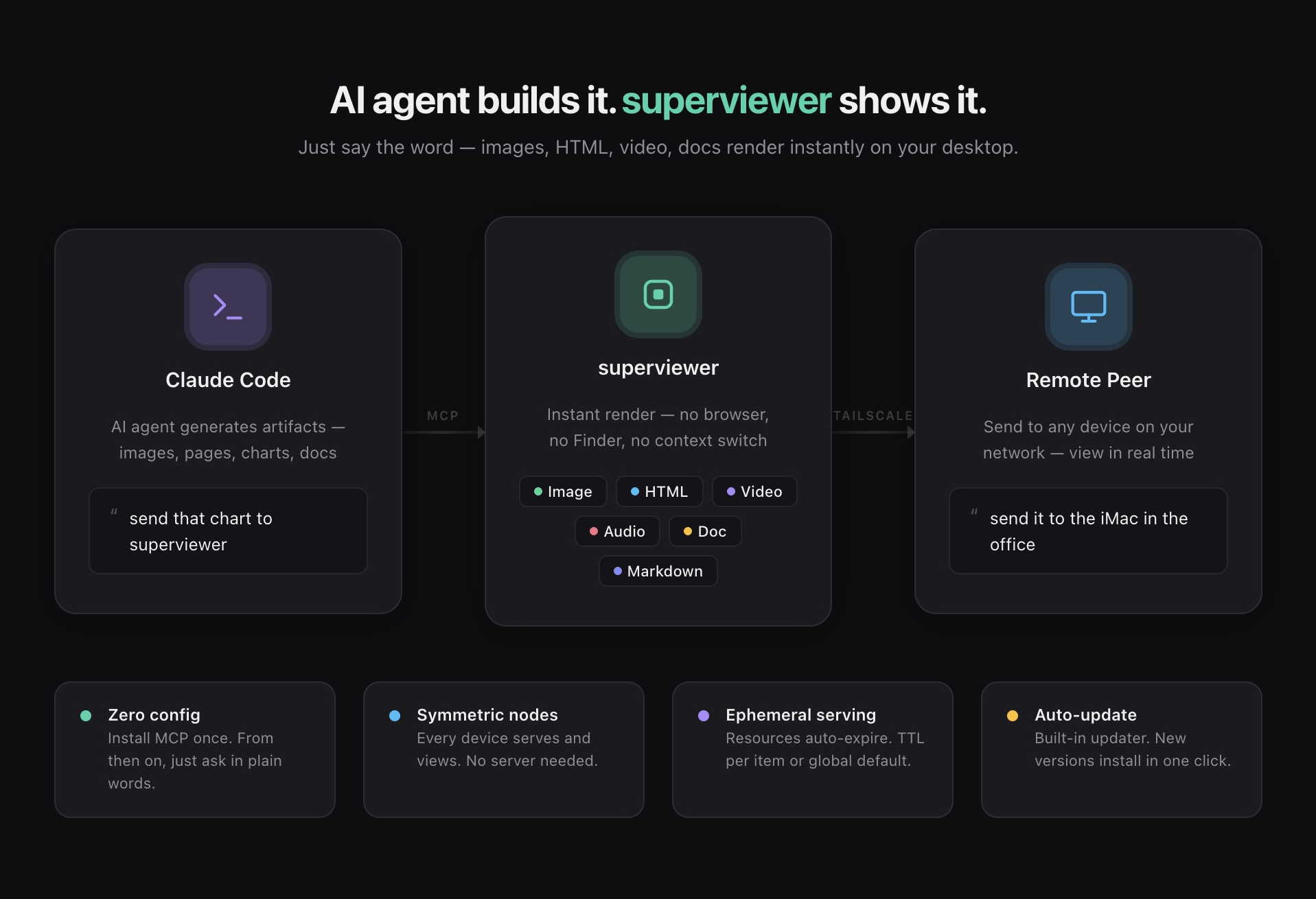
When you ask an AI coding agent to build something visual, the file has to land somewhere. Most of the time that means a path buried three folders deep, or a dev server you have to spin up and point a browser at. You end up doing more file management than reviewing the thing you asked for, and the loop you actually care about, build then look then adjust, keeps getting interrupted.
superviewer skips that step. It's a macOS app that connects to your agent over MCP and renders whatever the agent produces the moment it's ready. We wrote about the reasoning behind it in Why We Built superviewer; this one is the setup walkthrough. All you need is a Mac, an MCP-capable agent such as Claude Code or Cursor, and about two minutes. No account, no API key, no cloud dashboard to configure.
Step 1: Install superviewer
Download the app from the releases page and drag it into Applications like any other Mac app. Launch it once and it stays running in the background, ready to receive whatever your agent sends. Nothing else needs to happen at this stage: there's no onboarding wizard, no workspace to name, and no project to register up front.
Step 2: Connect it to your agent over MCP
Open superviewer, go to Settings, then MCP, and click Install. That single click registers superviewer as an MCP server your agent can call, and it writes its own connection details, so there's no config file to hand-edit and no port number to remember. On Claude Code, restart the session so it picks up the new tool. On Cursor or another MCP client the pattern is the same: add the server, reload the tool list.
If the tool doesn't show up after a restart, check that your client actually reloaded its server list rather than just reopening a window. On Claude Code, running /mcp shows the connection status and tool count for each configured server, and superviewer should appear there with its tools listed once the install has registered.
Step 3: Talk to it like you'd talk to a person
This part is easy to underestimate. You don't type a slash command or memorize a syntax, you say what you want in plain language and the agent decides when to call the tool. Phrasings like these all work:
- "Send that chart to superviewer"
- "Show me the Chrome window"
- "Put these three screenshots side by side"
- "Render this HTML page so I can see it"
Say you're debugging a Playwright test that renders a page slightly wrong. Instead of asking the agent to describe what the screenshot looks like, you ask it to send the screenshot over. It shows up on your screen in a second or two, you see the actual misalignment, and you can point at it in your next message instead of reconstructing it from a text description. That single change removes most of the back and forth from a visual debugging session.
What actually changes in your workflow
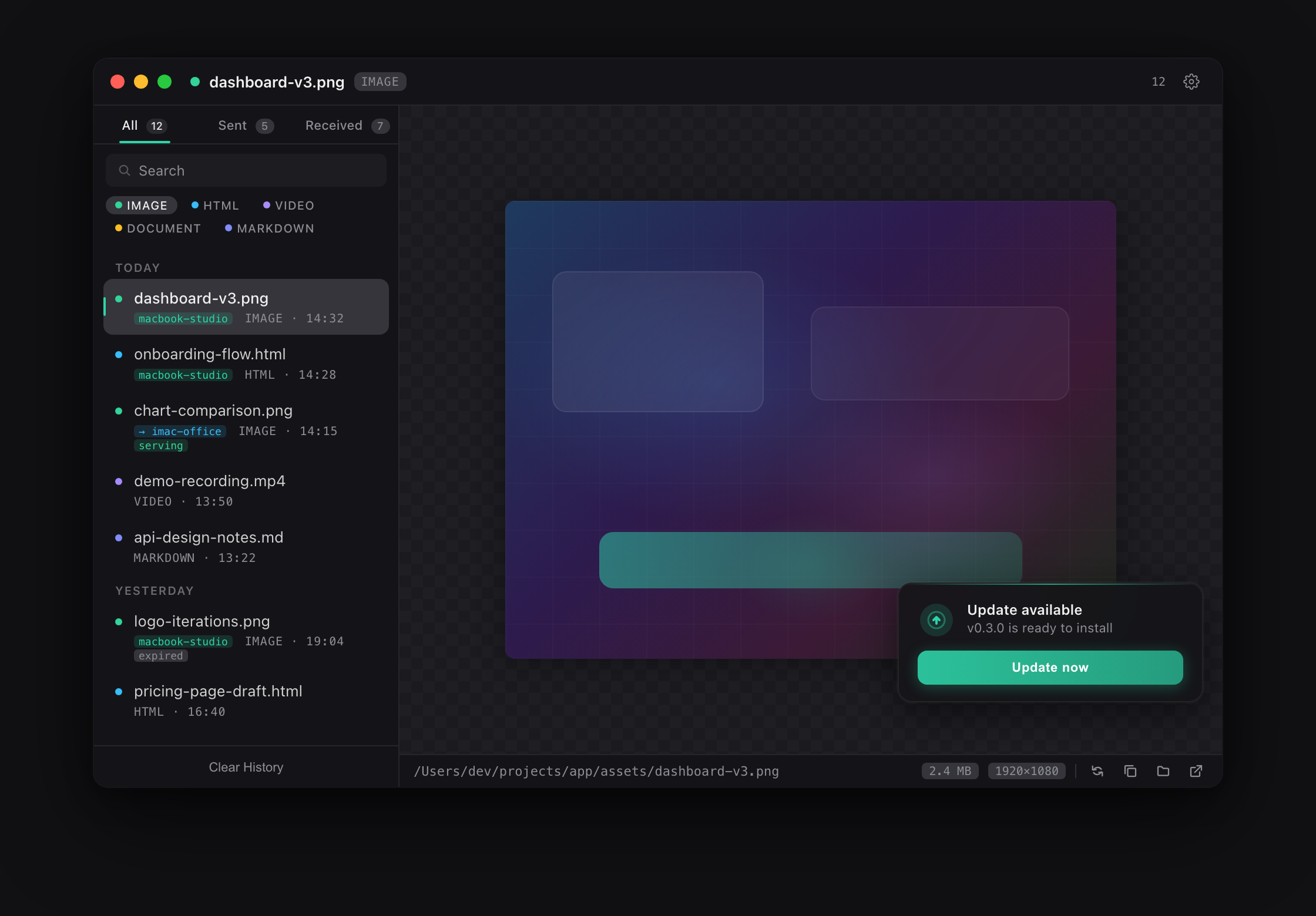
Before this setup, checking an agent's output meant one of two things: opening Finder and hunting for the export path, or spinning up a local server and pointing a browser at localhost. Both work. Both pull you out of the conversation you were in, and the real cost isn't the seconds it takes, it's that you stop looking at the problem and start looking at your file system instead.
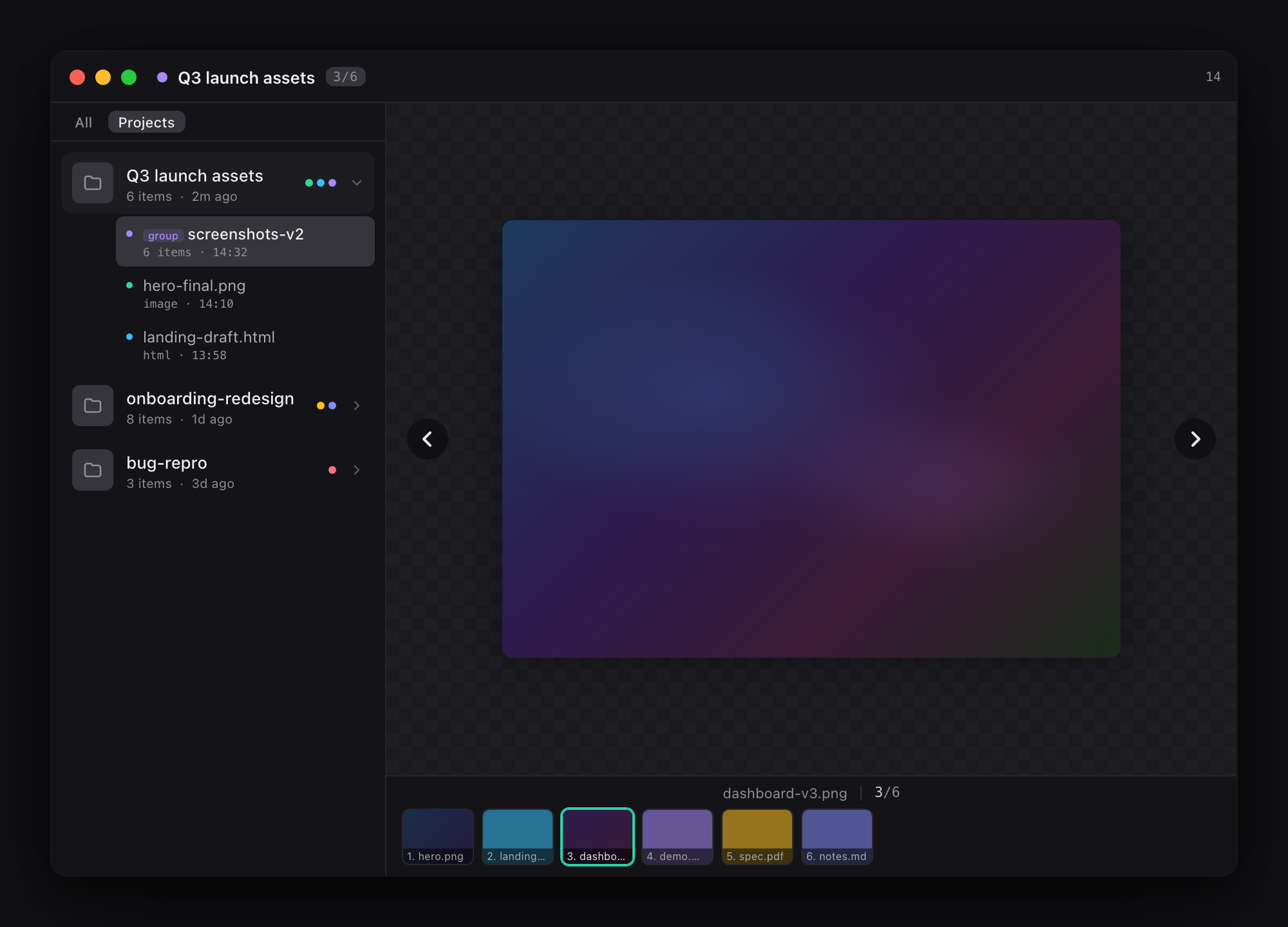
With superviewer in the background, that loop stays inside the conversation. You ask for a change, the agent makes it, the render updates without you touching a mouse. Multi-file work gets a real answer too: split view holds up to four renders side by side, so comparing three chart variations doesn't mean flipping between windows and losing track of which one you were looking at.
Nothing piles up behind you either. Rendered resources expire on their own after a TTL you set, so the app doesn't quietly turn into a second Downloads folder full of files you'll never open again. What does stick around is the feed: everything you've viewed stays there, grouped by project and searchable, so a render you closed three prompts ago is still findable without asking the agent to send it a second time. That distinction earns its keep in a long session, when the thing you want to compare against was generated an hour and forty messages ago.
Working across machines
If you've got more than one Mac on the same Tailscale network or LAN, you can address them by name. Tell your agent to send an artifact to a specific peer and it lands there instead of on your local screen. There's no central server involved: every machine running superviewer both serves and views, so the setup stays symmetric whichever direction things move. Windows and Linux builds are in progress, and the same addressing will work across platforms once they ship.
Closing the loop with feedback (Pro)
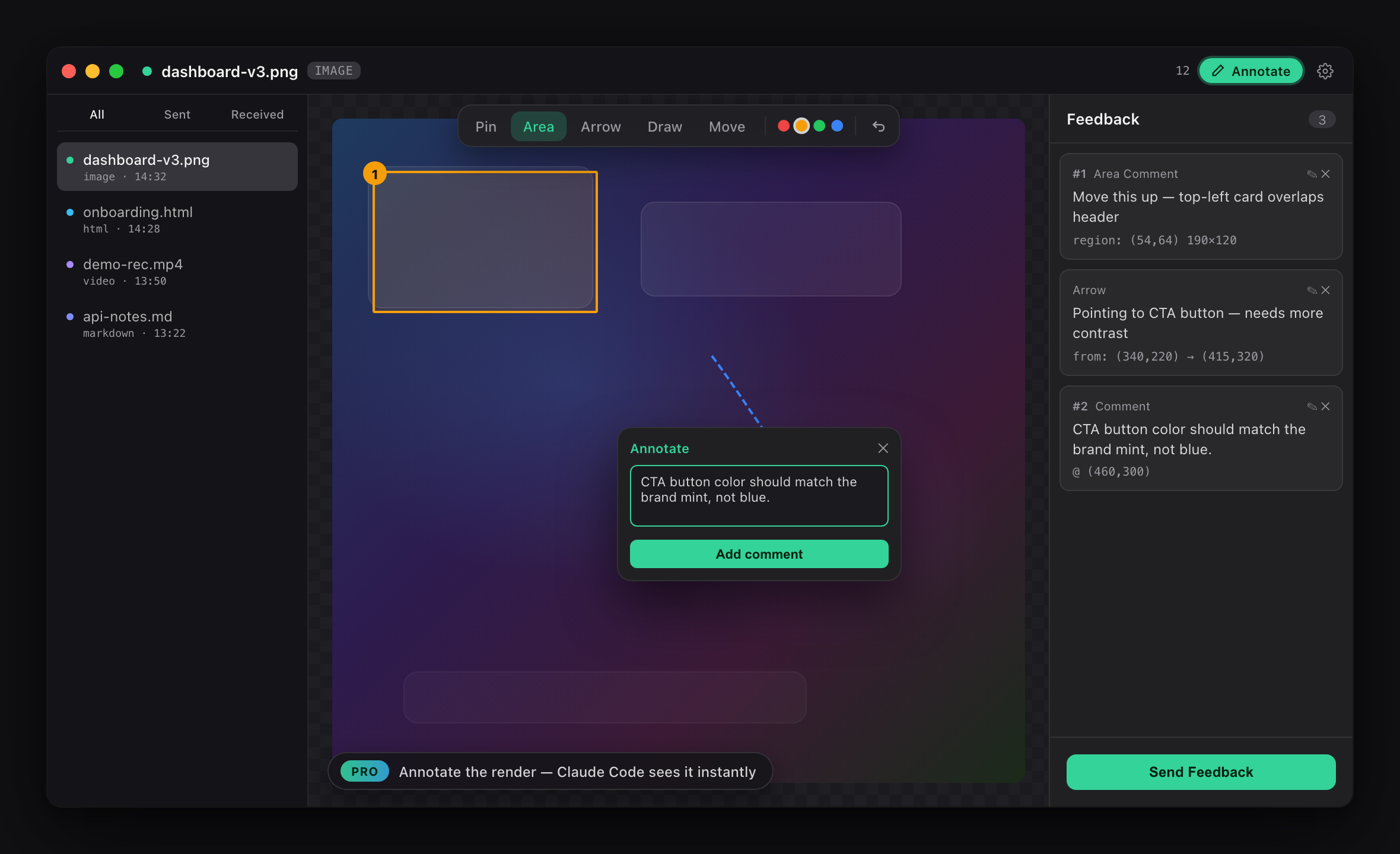
Viewing the result is half the job. The other half is telling the agent what's wrong with it, and that's where plain language starts to run out. "The header looks a bit off" is a weak instruction because the agent has to guess which header and what "off" means, and it usually guesses wrong at least once before it lands.
Pro adds annotation directly on the render: drop a pin, drag a region, draw, or mark a timestamp on a video, and write the note right where the problem is. Then you tell the agent to check the feedback, and it works through every note and marks each one resolved. The note carries the coordinates and the element along with your comment, so the agent edits the right thing on the first pass instead of the third. Pro is a one-time $19 purchase with a perpetual license and a year of updates included; the base app is free with no time limit, and rendering, capture, split view, remote peers, and feed history are all part of it.
Getting started
Install the app, click MCP then Install in Settings, and tell your agent to send something over. That's the entire onboarding. From there it behaves the way a good tool should, you stop noticing it's running until the moment you need it.
https://dodraft.studio/apps/superviewerFAQ
Do I need to configure anything after install?
No. Settings → MCP → Install registers the server automatically. There's no JSON to edit or port to assign.
Which agents does it work with?
Anything that supports MCP. Claude Code and Cursor are the most common, but the protocol isn't tied to one vendor.
What happens to files after I view them?
They're served with a configurable TTL and expire on their own. Nothing is uploaded anywhere, everything stays local to the machine that served it.
Is annotation required to use superviewer?
No. Viewing, capture, split view, and remote peers are all free. Annotation and the feedback loop are the only things gated behind Pro.

Enjoyed this post?
Subscribe to our newsletter and get notified when we publish new articles.