Why We Built superviewer - Your AI Makes Things. You Should See Them.
Your AI agent just built something. Now you're digging through Finder to find it. superviewer sits in the background and pops the result on your screen the moment it's ready - one MCP call, no browser, no refresh.
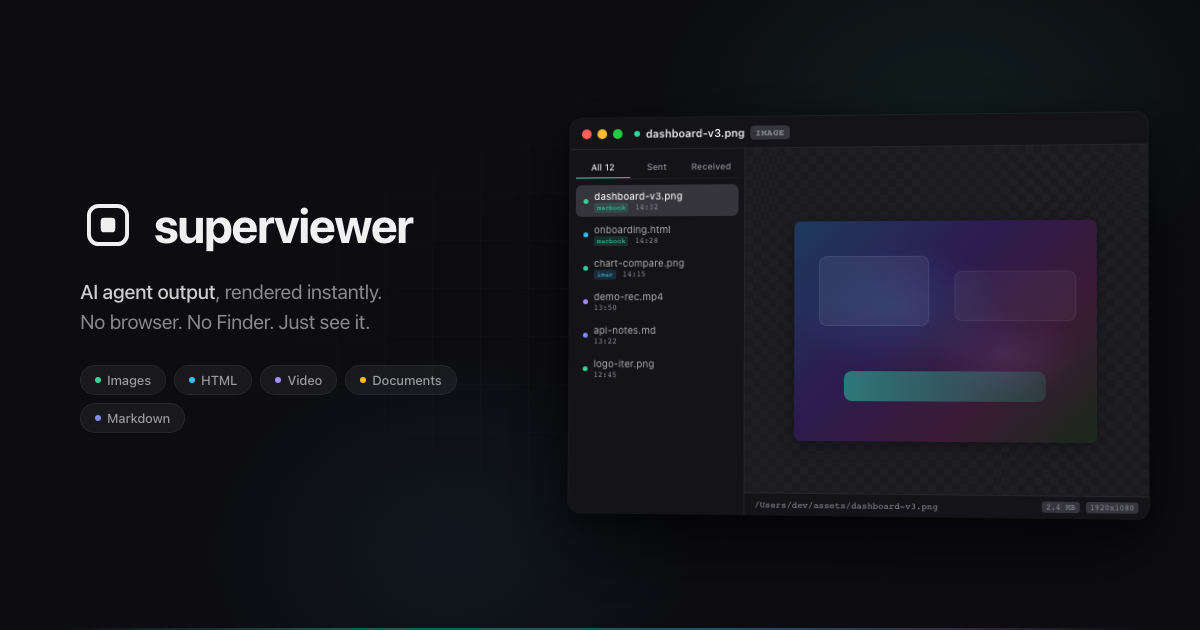
Your AI agent just generated an HTML page. Where is it? Somewhere in a project folder, three levels deep. You open Finder, navigate to the file, double-click, and it opens in a browser tab you'll forget about. Ten minutes later the agent generates a revised version. You go back to Finder, find the file again, and hit refresh. Repeat this fifty times a day and it stops being a minor annoyance. It becomes a workflow problem.
We were spending more time locating AI outputs than reviewing them. Images, documents, HTML renders, charts - all scattered across different folders, opened in different apps. The agent works fast. The human side of seeing what it made? Painfully slow.
The refresh loop nobody talks about
When an AI agent finishes a task, the result is a file on disk. Maybe it's a screenshot. Maybe it's a rendered HTML mockup. Maybe it's a chart or a document. The agent tells you it's done, and then you're on your own.
The typical flow: open Finder, navigate to the output folder, find the newest file, open it in the right application. If it's HTML, that means a browser. If it's an image, Preview. A PDF? Yet another app. Now multiply that by every iteration, every revision, every experiment the agent runs throughout the day.
HTML makes it worse. The agent updates the file but your browser shows the cached version. You stare at it wondering why nothing changed, realize you need to hard-refresh, and lose another thirty seconds. Sounds trivial in isolation. Over a full day of AI-assisted work, these micro-interruptions compound into something genuinely disruptive.
We wanted the agent to show us its work the moment it's ready. No Finder. No browser tabs. No refresh button.
The remote machine problem
Here's the scenario that pushed us over the edge.
You have a desktop at home with a powerful GPU, running agents overnight - generating assets, building prototypes, processing data. Next morning you're at a coffee shop with your laptop, and you want to check what got done. This is increasingly common as developers keep a dedicated "AI server" at home and work from a lighter machine on the go.
Your options are limited. Remote desktop works, technically. But the connection process is tedious: VPN, authentication, waiting for the screen to load. When it finally connects, the rendering quality drops. Colors look off. Text gets blurry. Scrolling lags. You're trying to evaluate visual output through a compressed video stream, like judging a painting through a foggy window.
What we actually needed was simpler than remote desktop. We didn't need to control the remote machine. We just needed it to send us the results. The agent finishes generating something at home, and it shows up on the laptop in front of you. No connection ceremony. No quality loss. The actual file, rendered natively on your local screen.
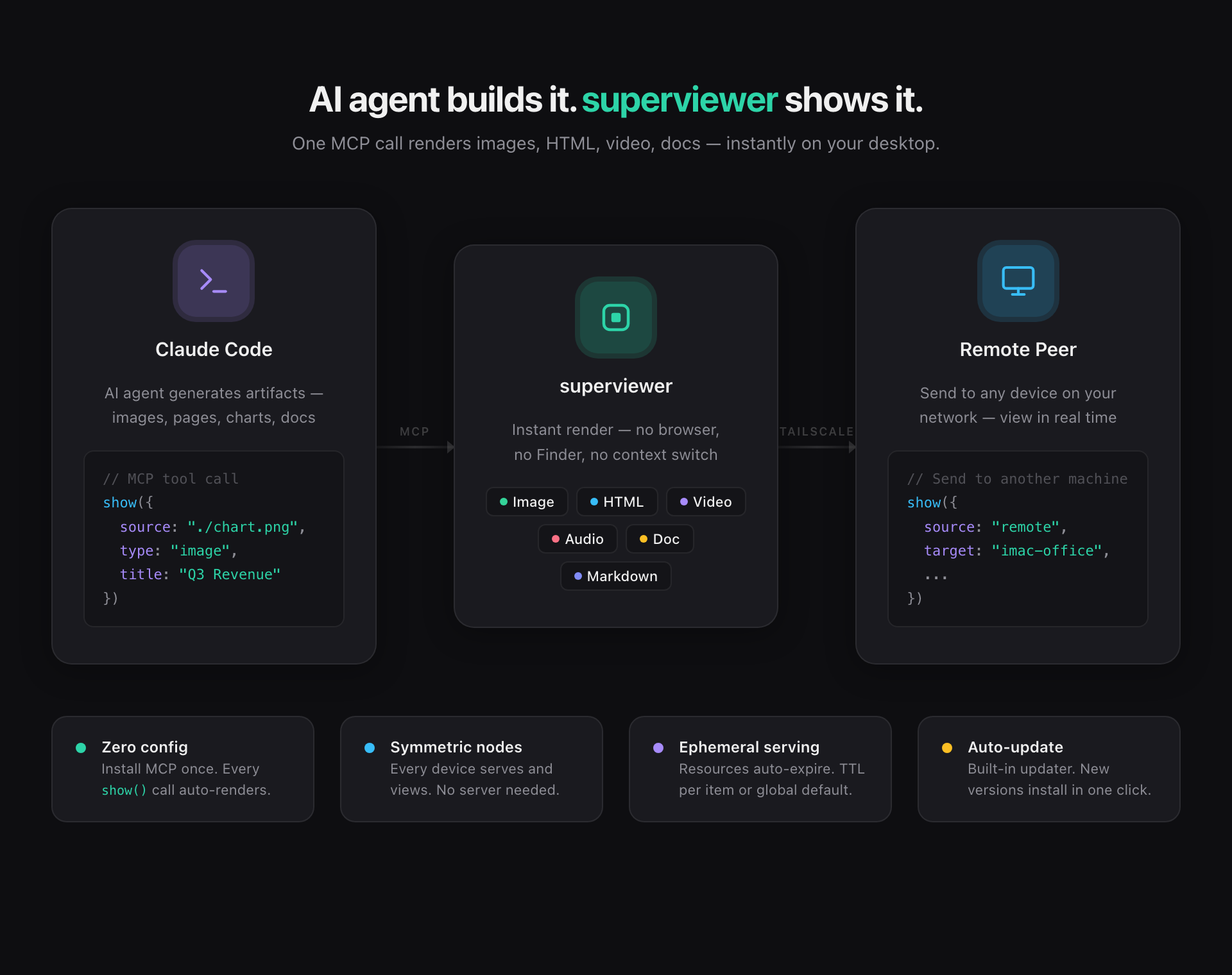
That's the core of what superviewer does. Every machine running it is both a sender and a viewer. Your home desktop pushes an artifact, and your laptop renders it instantly over Tailscale or LAN. No central server. No cloud relay. No accounts to create.
One function call, zero configuration
The interface between the AI agent and superviewer is a single MCP function: show(). The agent calls it with a file path or content, and superviewer renders it immediately. Images, HTML, video, audio, markdown, PDFs - it handles whatever the agent produces.
We chose MCP because it's becoming the standard protocol for AI tool communication. Claude Code supports it natively. Any MCP-compatible agent can call show() without writing custom integrations. After the initial install, you open Settings, click "Install MCP," and that's the last time you touch configuration. From that point on, the agent handles everything.
A feed, not a folder
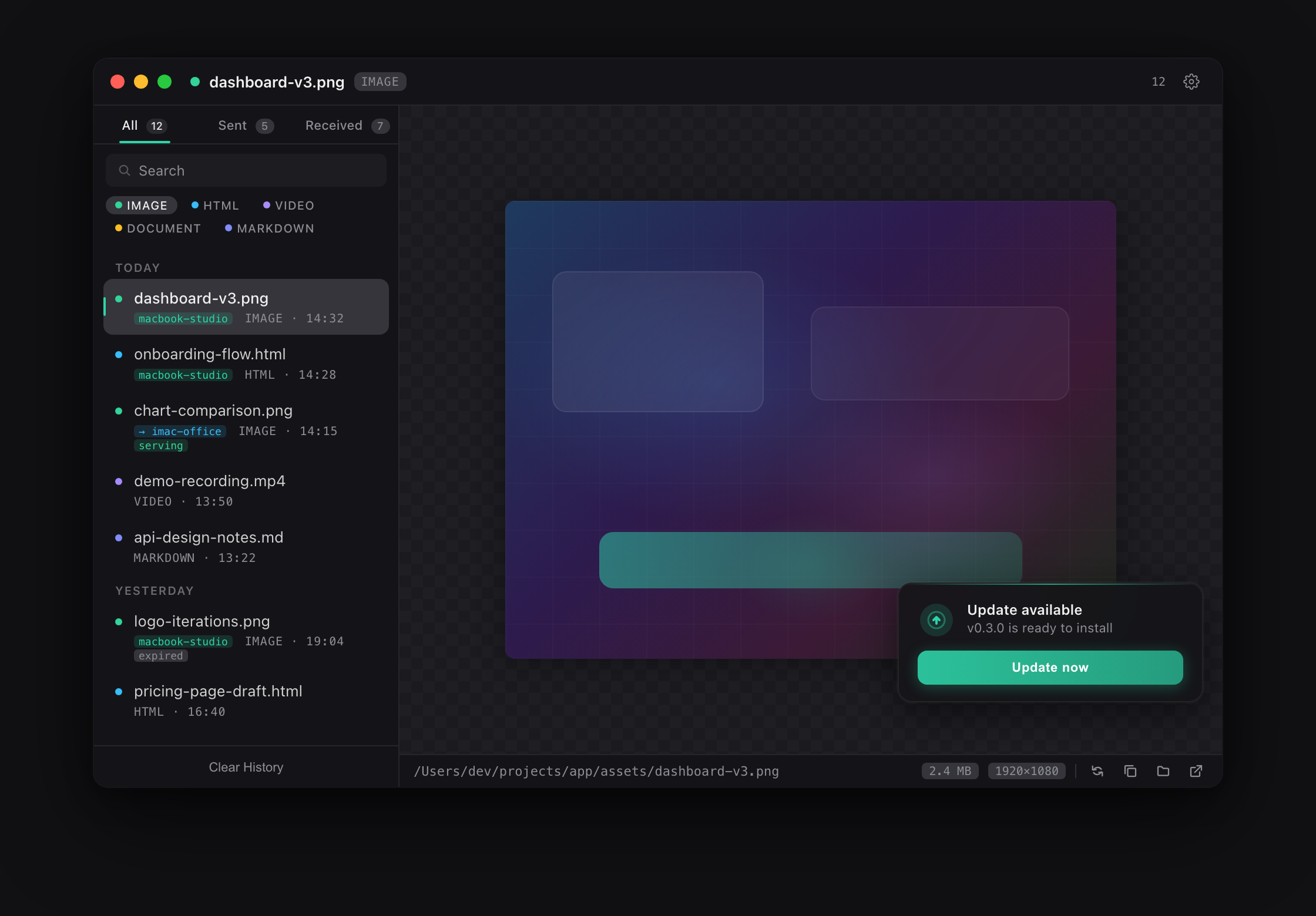
Every artifact the agent creates passes through superviewer's feed. It's a searchable, filterable timeline of everything you've seen, organized by project. Need that chart from three days ago? Search for it instead of digging through folders.
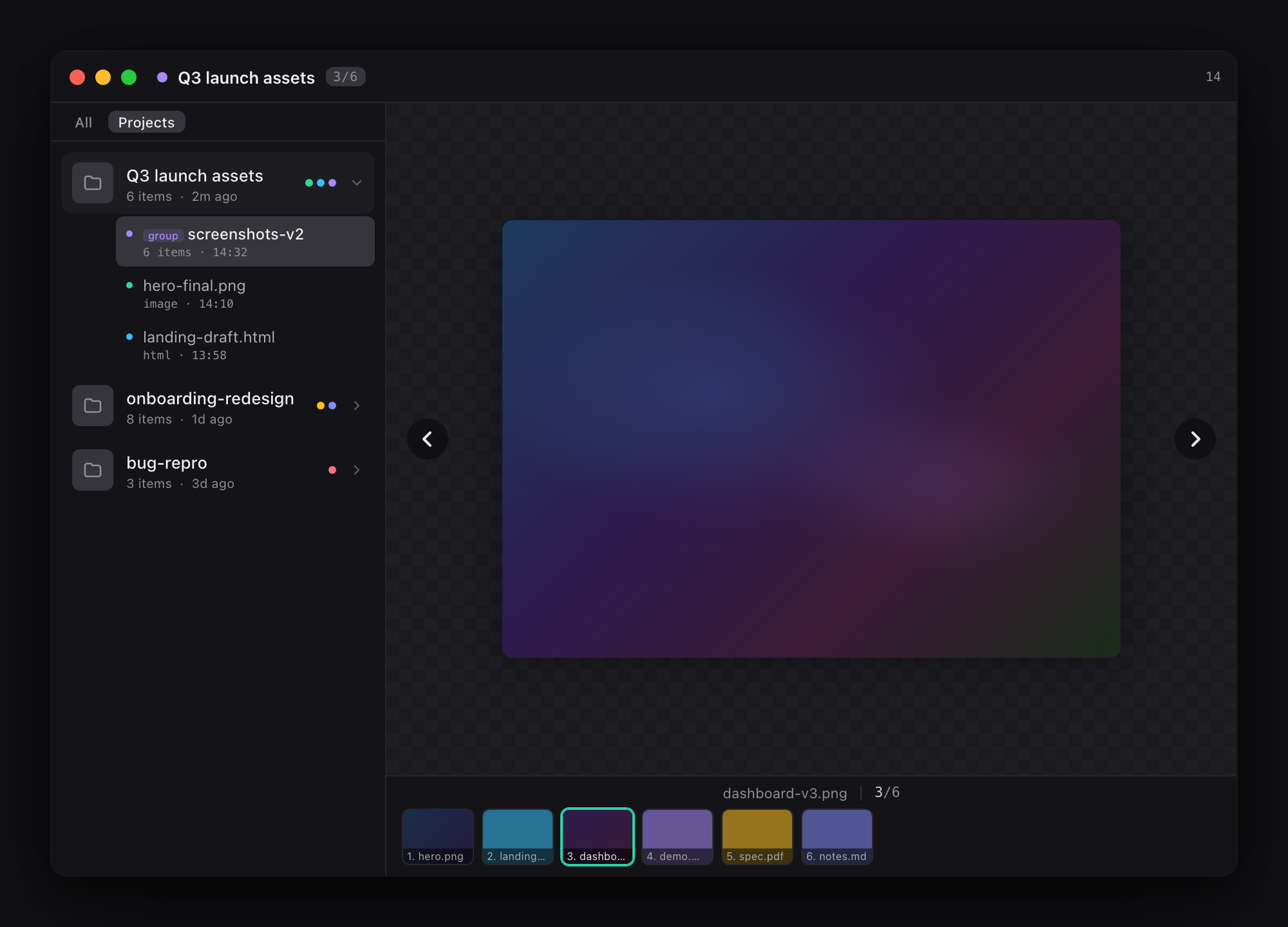
This matters more than it appears at first. AI agents are prolific. A single afternoon of work can produce dozens of iterations - mockups, revisions, experiments, dead ends. Without a structured history, you lose track of what version you approved, what you rejected, and why. The feed turns ephemeral agent output into a browsable archive you can actually navigate.
We also added TTL-based expiration for served resources. Files auto-expire after a duration you configure. This prevents the quiet accumulation that plagues every AI workflow. The default is generous enough that nothing disappears mid-session, but strict enough that the feed doesn't become a graveyard of forgotten renders.
Feedback on artifacts, not screenshots (coming soon)
One friction we haven't solved yet is giving feedback on AI-generated output. Right now the ritual looks like this: take a screenshot, paste it into Slack, open a separate image editor to draw a red circle, type "the spacing here is off." The person on the other end has to match your blurry annotation to the actual file. Half the time they're looking at a different version entirely.
We're currently building feedback annotations directly into superviewer. The idea is simple: pin a comment on a specific spot in the rendered artifact, draw an area, drop an arrow. The feedback lives on the output itself, not in a thread three channels away where context evaporates within hours. No screenshots, no separate tools, no version confusion.
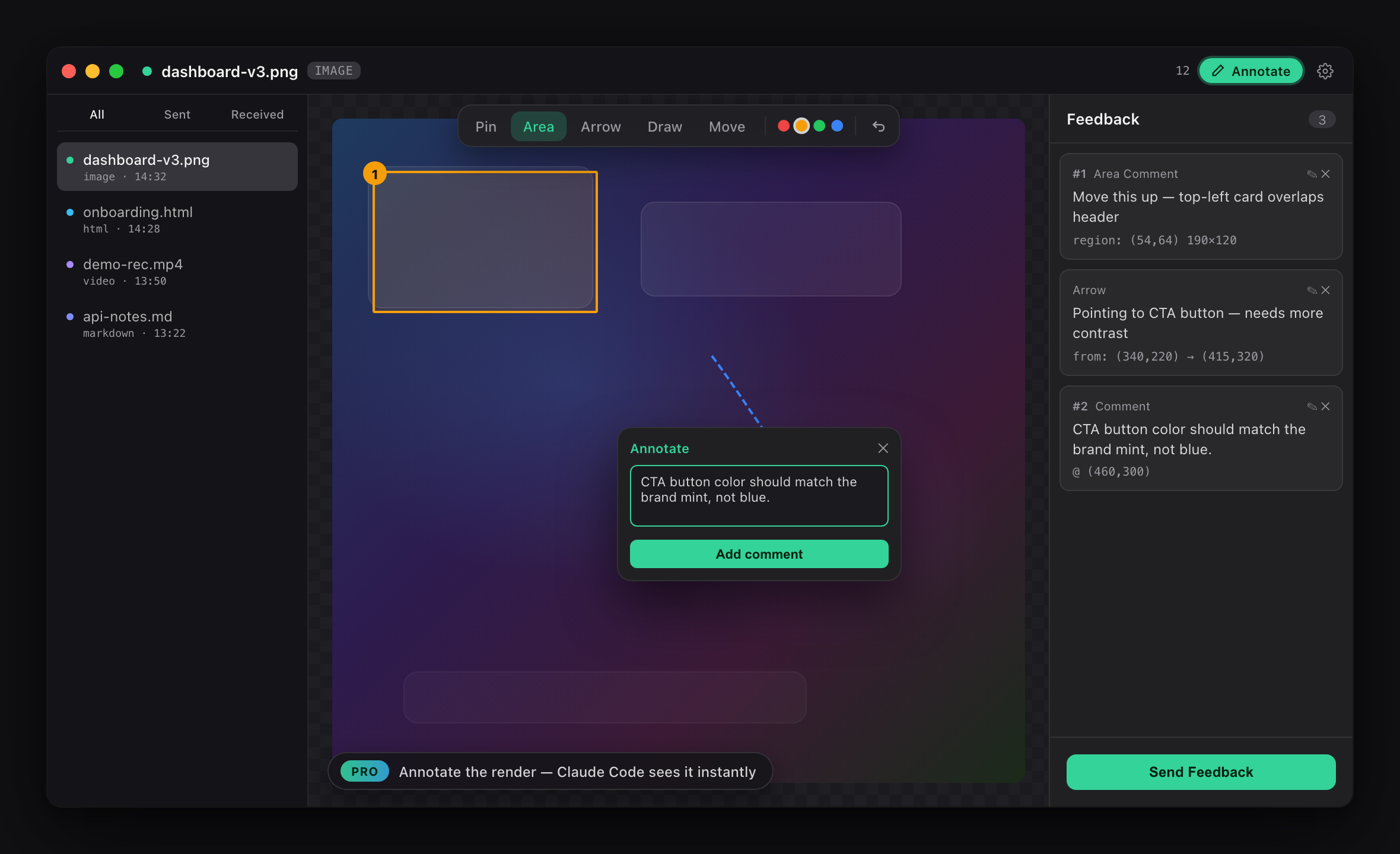
This is actively in development and will ship in an upcoming release.
What's next
Three more things on the roadmap beyond feedback annotations:
- Windows and Linux - superviewer runs on macOS today. Windows builds are in progress, with Linux to follow.
- Annotation threading - once feedback annotations ship, the next step is turning those pins into threaded conversations so back-and-forth happens in context.
- Capture workflows - automated screenshot sequences that agents can trigger to document their own output without human intervention.
https://dodraft.studio/apps/superviewer
superviewer is free. Install it, connect MCP, and let your AI agent show you what it built.
Written by the DoDraft team.

Enjoyed this post?
Subscribe to our newsletter and get notified when we publish new articles.